
Getting Started
Download
Get the latest release from GitHub Releases.
| Platform | Files |
|---|---|
| Windows | .exe installer, portable .exe |
| macOS | .dmg (Intel x64 and Apple Silicon arm64) |
| Linux | .AppImage, .deb |
First Launch
- Open DeLive — on first launch you'll be taken to the Settings page.
- Choose a provider — select an ASR backend from the Service tab.
- Enter credentials — fill in the required API key or configure a local service. See the API Key Guide for step-by-step instructions.
- Test configuration — click Test Config to verify connectivity.
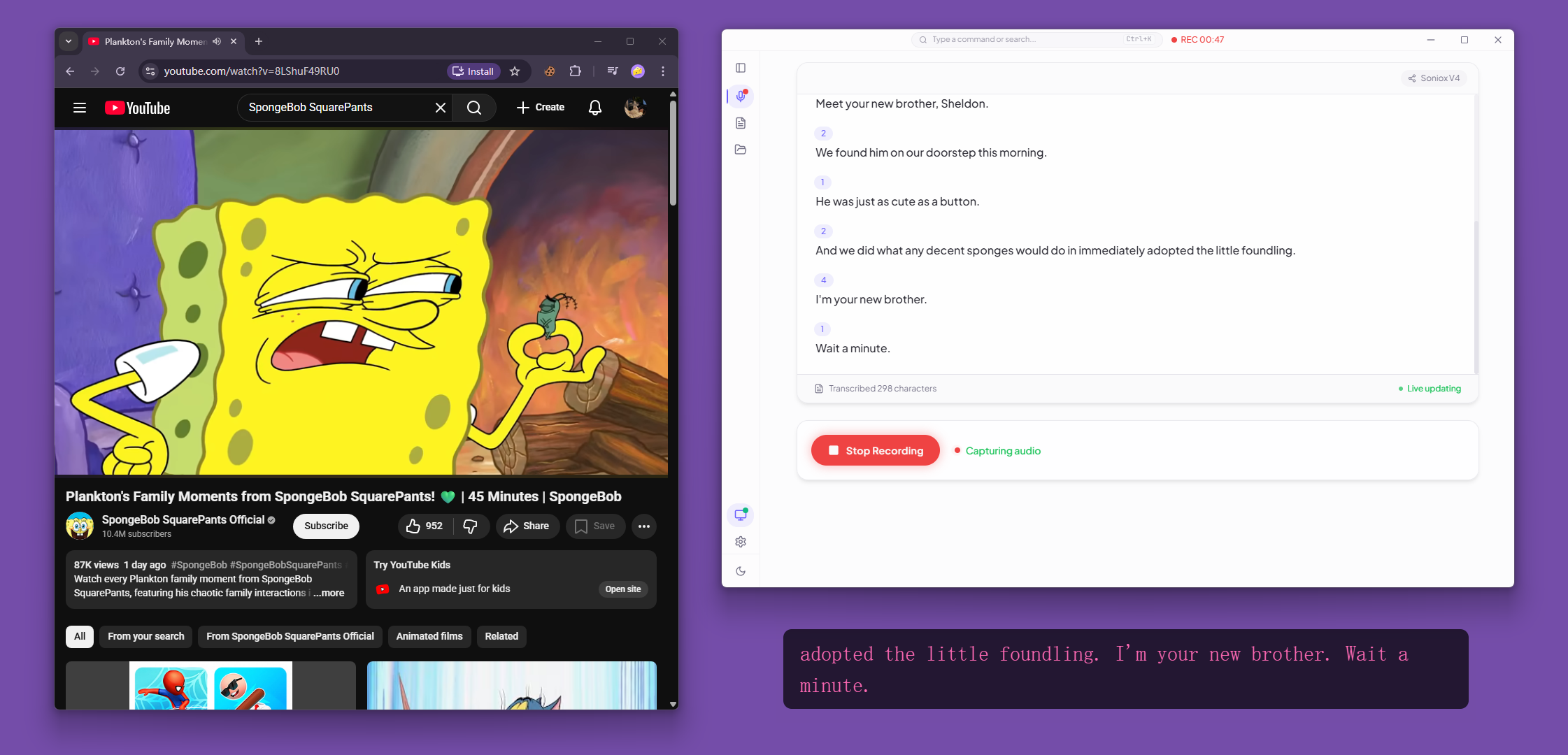
- Start recording — go to the Live view, click Start Recording, pick a screen/window with audio sharing enabled.
Windows SmartScreen
Windows may show a SmartScreen warning on first launch. Click More info → Run anyway. This is normal for newly distributed unsigned apps.
System Requirements
- Windows 10+
- macOS 13+
- Linux with PulseAudio loopback support
- At least one ASR provider configured (cloud API key or local service)
Provider Quick Setup
Cloud Providers
For detailed signup instructions and free tier info, see the API Key Guide.
| Provider | What You Need |
|---|---|
| Soniox | API key from soniox.com |
| Volcengine | APP ID and Access Token |
| Groq | API key from groq.com |
| SiliconFlow | API key from siliconflow.cn |
| Deepgram | API key from deepgram.com |
| AssemblyAI | API key from assemblyai.com |
| ElevenLabs | API key from elevenlabs.io |
| Gladia | API key from gladia.io |
| Mistral AI | API key from mistral.ai |
| Cloudflare Workers AI | API token + Account ID from cloudflare.com |
Local Providers
| Provider | What You Need |
|---|---|
| Local OpenAI-compatible | A service exposing /v1/models and /v1/audio/transcriptions (e.g. Ollama) |
| Local whisper.cpp | whisper-server binary + a .bin or .gguf model — or let DeLive download them |
Building from Source
bash
git clone https://github.com/XimilalaXiang/DeLive.git
cd DeLive
npm run install:all
npm run dev
npm run dev starts Vite and Electron together. The Volcengine proxy runs inside the Electron main process.