
Recording
Typical Flow
- Open Settings and choose a provider (see ASR Providers for details).
- Fill in credentials (see API Key Guide), then run Test Config.
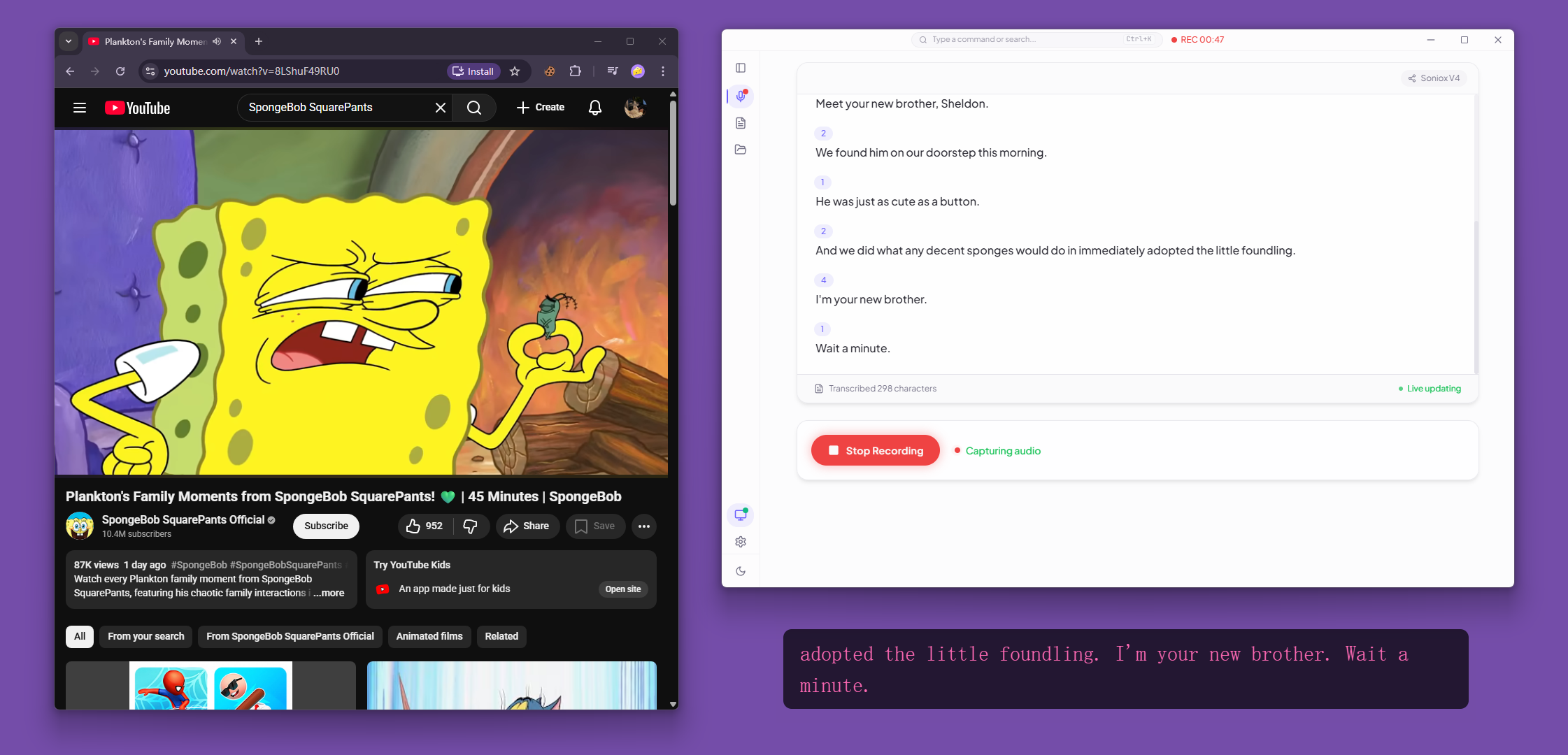
- Click Start Recording in the Live view.
- Pick a screen or window — make sure audio sharing is enabled.
- Watch partial and final text update in the main window and the optional floating caption overlay.
- Click Stop Recording. The session is saved and available in History.
Audio Capture
DeLive captures system audio via getDisplayMedia with loopback audio. The capture pipeline automatically selects the right audio path based on the provider:
| Audio Mode | Format | Used By |
|---|---|---|
MediaRecorder | WebM/Opus chunks | Soniox, Local OpenAI-compatible |
AudioWorklet PCM16 | 16 kHz mono raw PCM | Volcengine, Groq, SiliconFlow, whisper.cpp |
INFO
You must select a screen or window to share. DeLive captures the audio from whatever source you choose — browser tabs, meeting apps, media players, or any other playback source.
Session Lifecycle
Sessions go through these states:
idle → starting → recording → stopping → completed
                     ↓
                interrupted (app crash / force quit)
                     ↓
recovery on next launch- Draft sessions are created when recording starts and autosaved every 1.2 seconds.
- Interrupted sessions are detected on next launch and can be recovered or dismissed.
- Completed sessions appear in the History list for review, AI processing, and export.
Device Changes
If your audio device changes during recording (e.g. headphones plugged in), DeLive handles it based on the provider's captureRestartStrategy:
reconnect-session(Soniox) — disconnects the provider and reconnects with a fresh sessionreuse-session(all others) — restarts only the capture pipeline, keeping the provider connection alive
Keyboard Shortcut
| Shortcut | Function |
|---|---|
Ctrl+Shift+D / Cmd+Shift+D | Show or hide the main window |
Ctrl+Shift+R / Cmd+Shift+R | Toggle recording |