
Topics & Tags
Topics
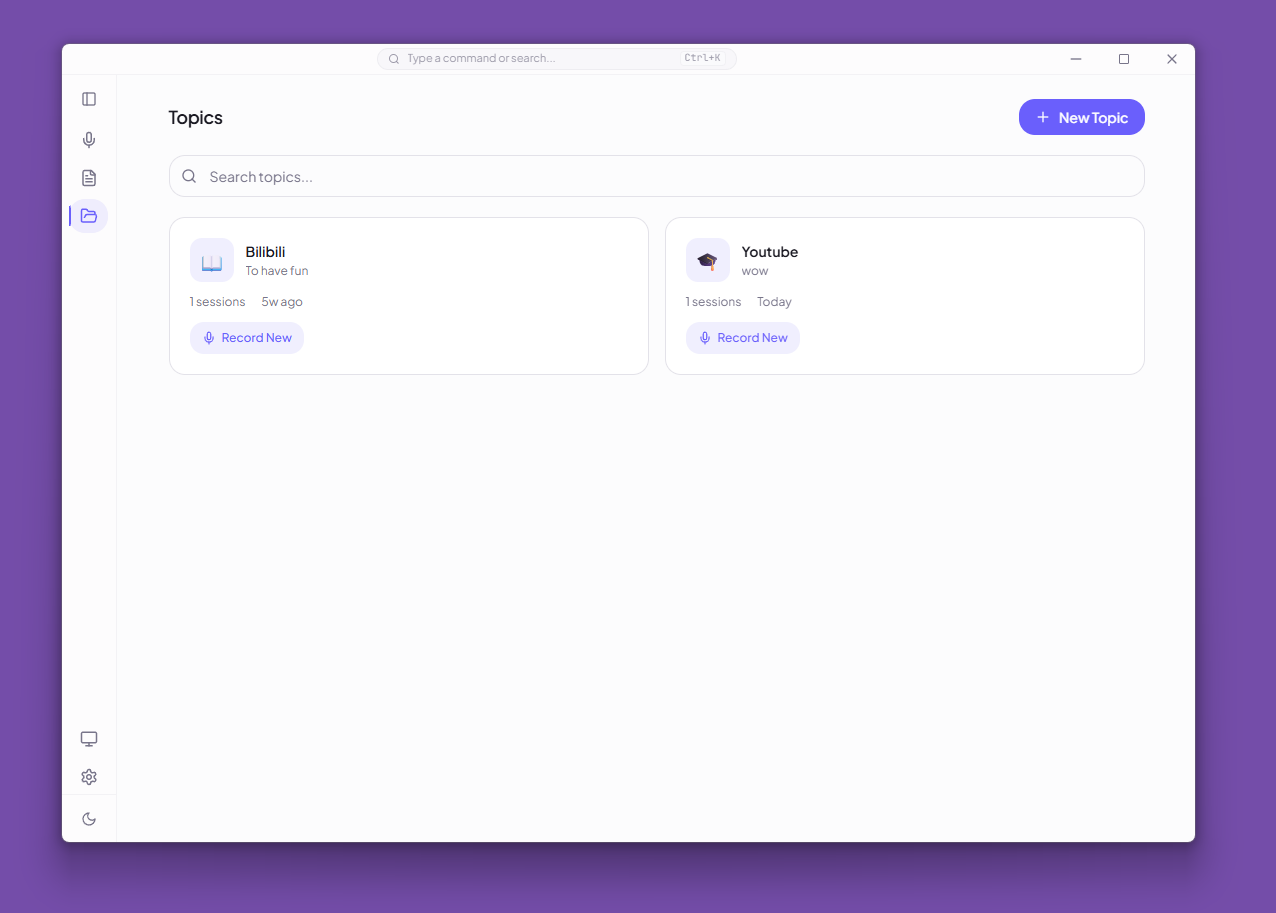
Topics are project-like containers for organizing recording sessions.
Creating a Topic
- Open the Topics tab from the navigation bar
- Click Create Topic
- Enter a name, choose an emoji icon, and optionally add a description
Recording into a Topic
Two ways to associate a recording with a topic:
- From the topic card — click Record New on a topic card, which opens the Live view with the topic pre-selected
- From the Live view — click the Select Topic link above the recording controls and pick a topic
The selected topic appears as a badge above the record button, and recordings are automatically assigned.
Managing Sessions in Topics
- Sessions inside a topic are hidden from the default History list, but global search still finds them
- Move existing sessions into or out of a topic from the Overview tab in the Review Desk
- Deleting a topic removes the association but does not delete the sessions
Tags
Tags provide lightweight cross-cutting labels for sessions.
Using Tags
- Create tags with a name and color (from preset Tailwind color palettes)
- Assign tags to sessions from the Review Desk Overview tab
- Filter sessions by tag in the History view
- AI can suggest tags during post-processing — apply them with one click
Preset Colors
Tags use a set of predefined color bundles with name, bg, text, and border classes for consistent visual appearance across light and dark themes.
Backup & Import
- Export saves all sessions, tags, and settings (except topics) to a JSON file
- Import can either overwrite all data or merge (only new sessions and tags are added)
- Topics are stored in localStorage and are not included in backup files